QR Codes on Signs and Decals: How to Make Them Easier to Scan
Choose one useful destination, protect the code's clear border, and test the final artwork at its finished size. A practical QR-code layout gives customers a cleaner path from print to action.
Choose One Useful Destination
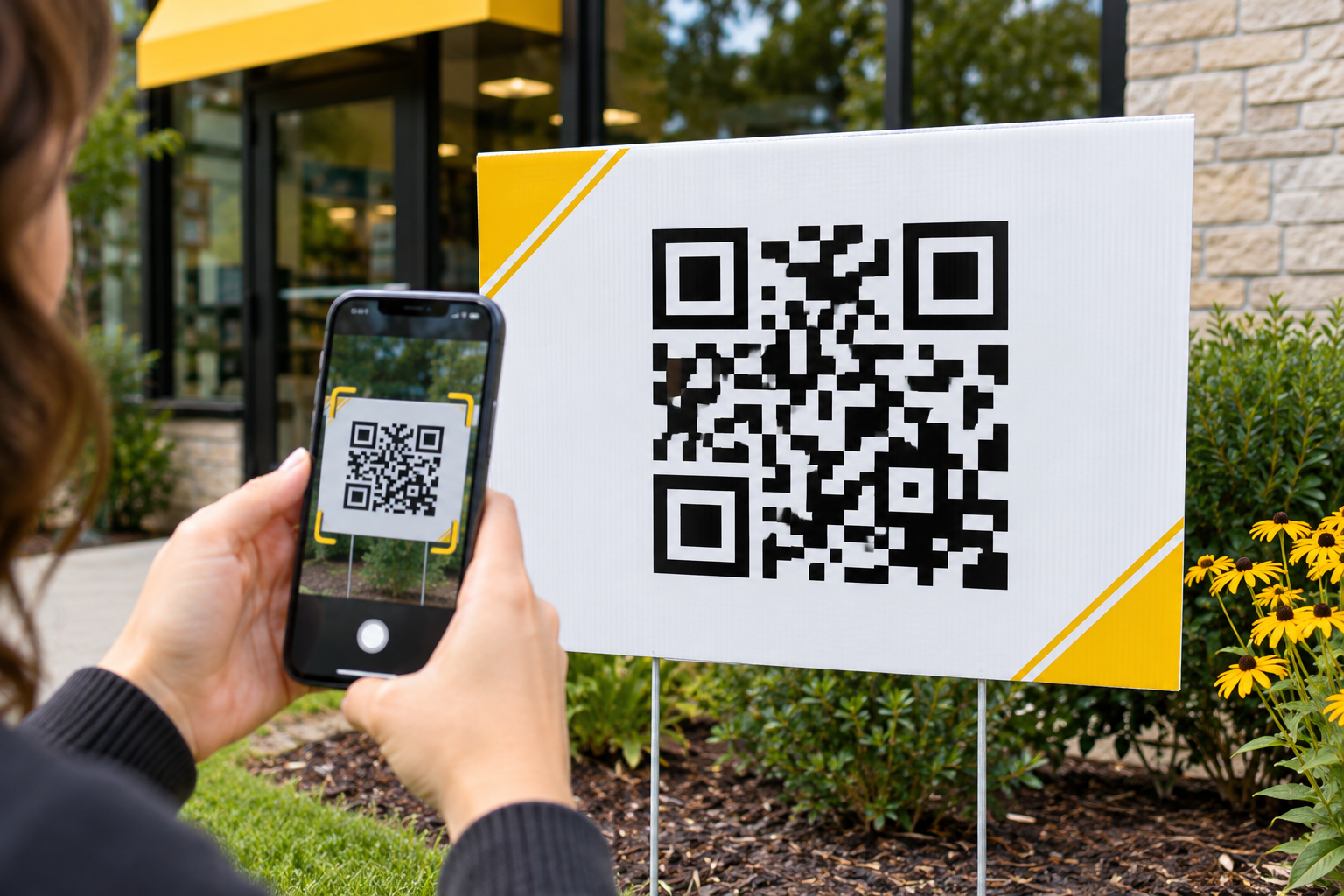
A QR code can turn a printed sign, decal, banner, or counter display into a direct path to a menu, booking page, review form, event registration, product page, or contact form. But printing the square is not enough. The code still has to be large enough, surrounded by clear space, placed where a person can reach it safely, and tested after the artwork is prepared.
Start with the action you want the viewer to take. A sign that says ‘Scan to book’ should open the booking page, not a home page that makes the customer search again. ‘Scan for today's menu’ should open the current menu. ‘Leave a review’ should lead directly to the appropriate review flow.
Use the shortest reliable URL available. Encoding more data can create a denser QR symbol with more small squares, which can make the code harder to reproduce at a small physical size. DENSO WAVE, the developer of QR Code technology, explains that the amount of encoded data affects the symbol version and number of modules.
Before generating the code, confirm that the destination works on a phone, uses HTTPS, and does not require an unexpected sign-in. If the page may move later, consider a redirect URL that you control so the printed code can keep working while the final destination changes.
Protect the Quiet Zone
The blank border around a QR code is functional space, not leftover room. It helps a phone distinguish the code from the surrounding artwork. DENSO WAVE specifies a clear margin four modules wide on every side of a standard QR code.
Do not place a border, photograph, texture, headline, or logo inside that margin. Avoid trimming the code too close to the edge of a decal or sign. If the design uses a busy background, place the complete QR code—including its quiet zone—on a solid light panel.
Black modules on a white background remain the safest visual choice. DENSO WAVE notes that scanning depends on reflected-light differences and recommends black on white as the basic approach. A brand color may work, but it should remain dark and should be tested in the finished design rather than assumed to scan.
Size the Code for the Real Viewing Situation
A QR code on a counter decal is used differently from one on a banner or roadside yard sign. Consider how close the viewer can safely stand, whether the printed piece will move, and whether glare, shadows, traffic, or landscaping could interfere.
Do not ask passing drivers to scan a roadside sign. A QR code works better where a person can stop—at a counter, entry door, event table, parked vehicle, waiting area, or walk-up display. For signs viewed from farther away, the business name, offer, URL, or phone number should still communicate the main message without requiring a scan.
There is no single physical size that fits every use. The code's data density, printer, material, viewing distance, phone camera, lighting, and surface all matter. Print the code at its planned finished size and test it from the expected distance before ordering the full run.
Keep the Code Square, Flat, and Clear
Do not stretch a QR code to fill a rectangular space. Resizing must preserve the square proportions and the clean grid. DENSO WAVE warns that distortion and decorative alterations can prevent reliable reading.
Curved, transparent, reflective, or highly textured surfaces need extra caution. A code that scans on a flat monitor may not behave the same way when wrapped around a bottle, placed across a vehicle body line, printed on transparent film, or viewed through glare. DENSO WAVE specifically notes that transparent and glossy materials can interfere with the reflected-light contrast used for scanning.
When applying a QR-code decal, choose the flattest practical location. Keep the code away from seams, rivets, handles, deep curves, and moving panels. If the surface color or pattern could show through, use a white-backed decal or include a solid white field in the artwork.
Add a Clear Reason to Scan
A QR code without context asks the viewer to trust an unexplained square. Add a short call to action that says what will happen: ‘Scan to request a quote,’ ‘Scan for installation instructions,’ or ‘Scan to register.’
Keep that instruction close enough to be associated with the code without entering the quiet zone. The rest of the sign should still have a clear hierarchy: primary message first, supporting detail second, and QR action third. The code should support the communication rather than replace it.
If the destination is important, include a readable fallback such as a short web address. That gives the customer another route if the camera cannot scan the code or if accessibility needs make another method easier.
Test the Final Artwork, Not Just the Original Code
Test the code after it has been placed in the design and exported for production. Cropping, compression, low resolution, color changes, transparency, or an added background can affect a code that worked perfectly when it was first generated.
Use more than one phone when possible. Test in bright and dim light, at the intended finished size, and from the likely approach angle. Verify the complete destination—not just that the camera recognizes a code. The correct page should load quickly and display well on mobile.
Run one final scan from the production proof before approving the order. Then keep the destination active for as long as the printed piece remains in use. A technically perfect code still fails the customer if the linked page is later deleted.
- Link directly to the action promised beside the code.
- Keep the destination mobile-friendly, secure, and under your control when possible.
- Leave a clear quiet zone of four modules on all four sides.
- Use strong dark-on-light contrast and avoid busy backgrounds.
- Preserve the code's square proportions and regular grid.
- Choose a flat, reachable placement instead of a curve, seam, or high-glare area.
- Add a short explanation such as ‘Scan to book’ or ‘Scan for a quote.’
- Include a short URL or other fallback when the destination is important.
- Test the complete final artwork at finished size on multiple phones.
- Scan the production proof and keep the linked page active after printing.
Turn Your Idea Into a Finished Product
AI can help create the idea. Devil Decals can help prepare it for real production. Submit your artwork, concept, sketch, or inspiration and we will help determine what is needed to print, cut, or apply it properly.
About the Author
Rob Macedonio is a U.S. Marine Corps veteran, heavy-equipment professional, entrepreneur, and founder of Devil Decals LLC. His work combines practical production experience, graphic design, digital fabrication, business operations, and emerging technology.